

Navigate to the form you are creating or editing.
Add or select the section or block you want to edit.
Select the Section or Block . . . menu button.

Select Conditional logic
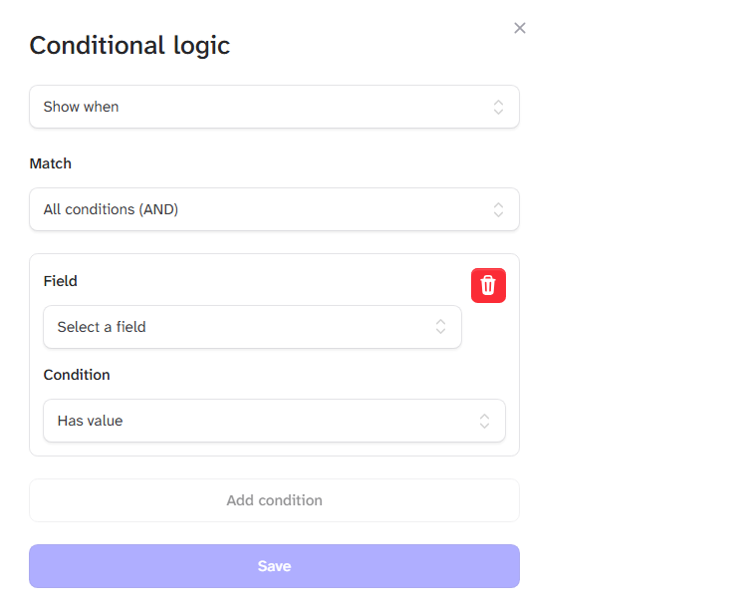
Select the action required.
Show when - Shows the Section or Block when the condition is met
Hide when - Hides the Section or Block when the condition is met
Select the condition logic
All conditions are met - AND
Any condition is met - OR
Select the field - only fields before the section or input being updated are shown
Select the condition
Has value - Anything entered, uploaded or selected
Is empty - Nothing entered, uploaded or selected
Equals - entry must equal the value entered in the Value Box
Does not equal - entry must not equal the value entered in the Value Box
Contains - entry must contain the value entered in the Value Box
Does not Contain - entry must not contain the value entered in the Value Box
Greater than - entry must be greater than the number entered in the Value Box
Greater than or equal to - entry must be greater than or equal to the number entered in the Value Box
Less than - entry must be less than the number entered in the Value Box
Less than or equal to - entry must be less than or equal to the number entered in the Value Box
Multiple conditions can be added to any input or section.
Conditional logic guides users through the form-filling process, eliminating unwanted sections and questions.