
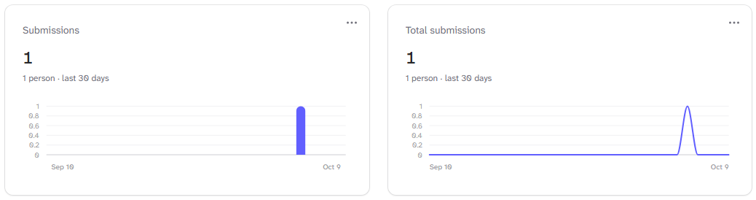
Charts can be added to:
Your Dashboard
Any Item Overview page
Any Form Overview page
The chart can relate to any item and assigned form.
Navigate to where you want to add a Chart.
Dashboard and Item Overview Screen Chart Cards
Select [+ Add] and card type Chart
Form Overview Screen Chart Cards
Select [+ Add Card]
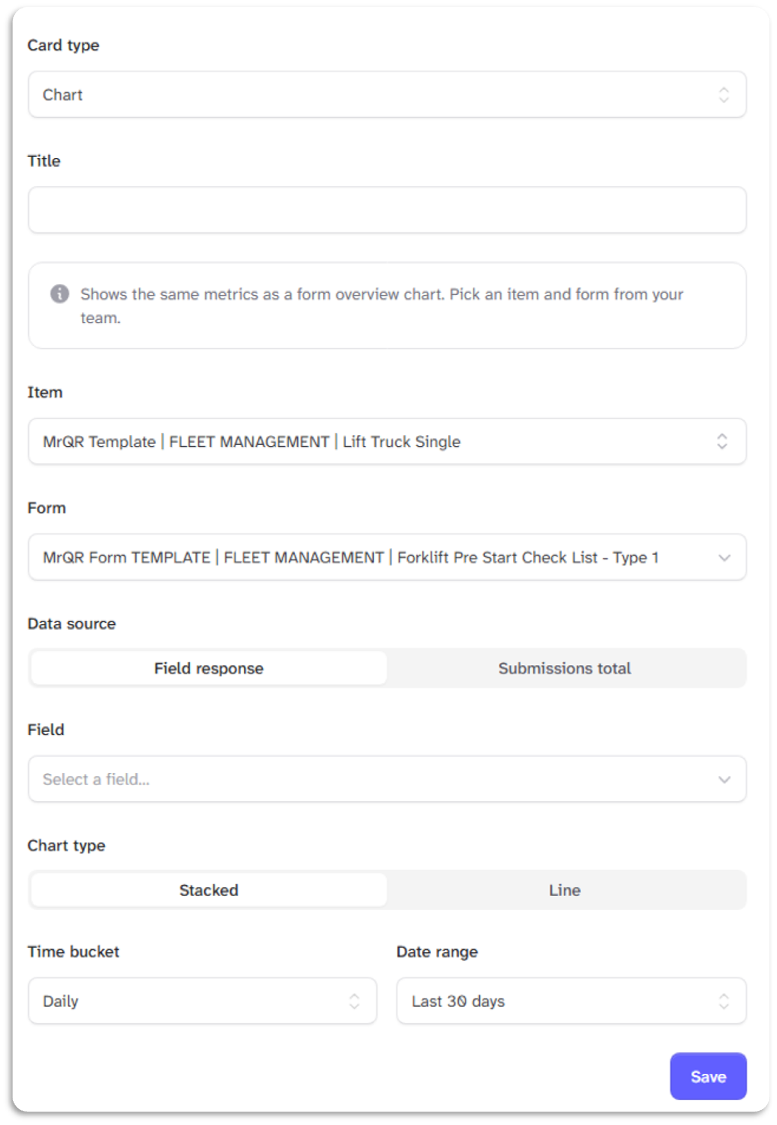
Enter the name of your chart in the Title box.
Search and select the Item with the assigned form (not required on Form Overview Screens)
Select the Form. (not required on Form Overview Screens)
Select the data source
Field response - to chart a specific field. Normally used with multiple-choice answers, you must also select a Field
Submission total - to chart all the submissions
Select the Chart type
Bar
Line
Select the Time bucket
Daily
Weekly
Monthly
Select the Date range
Last 7 days
Last 30 days
Last 90 days
Last 12 Months
All time
Once created, charts will be dynamic and update immediately when submissions are completed,